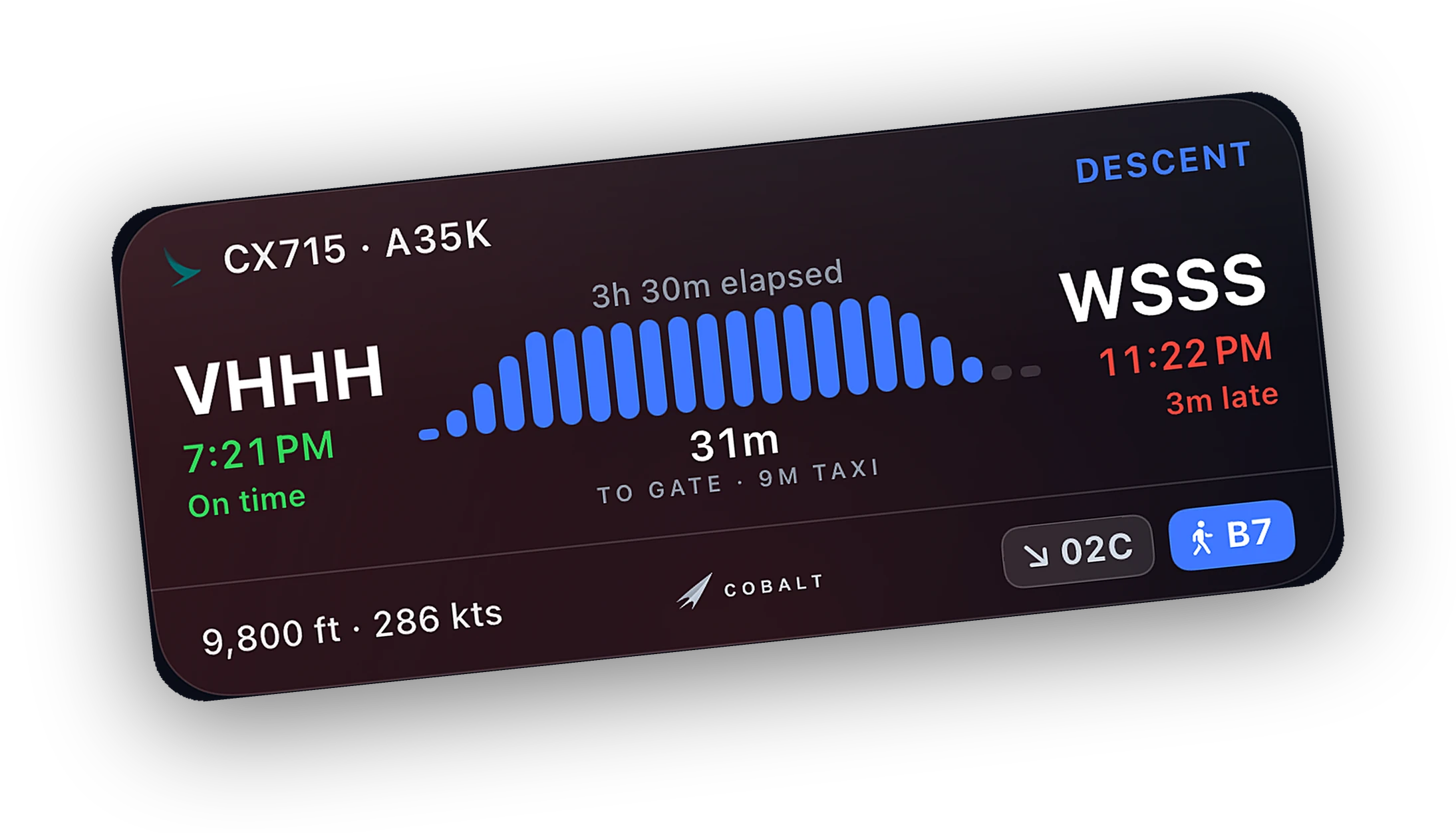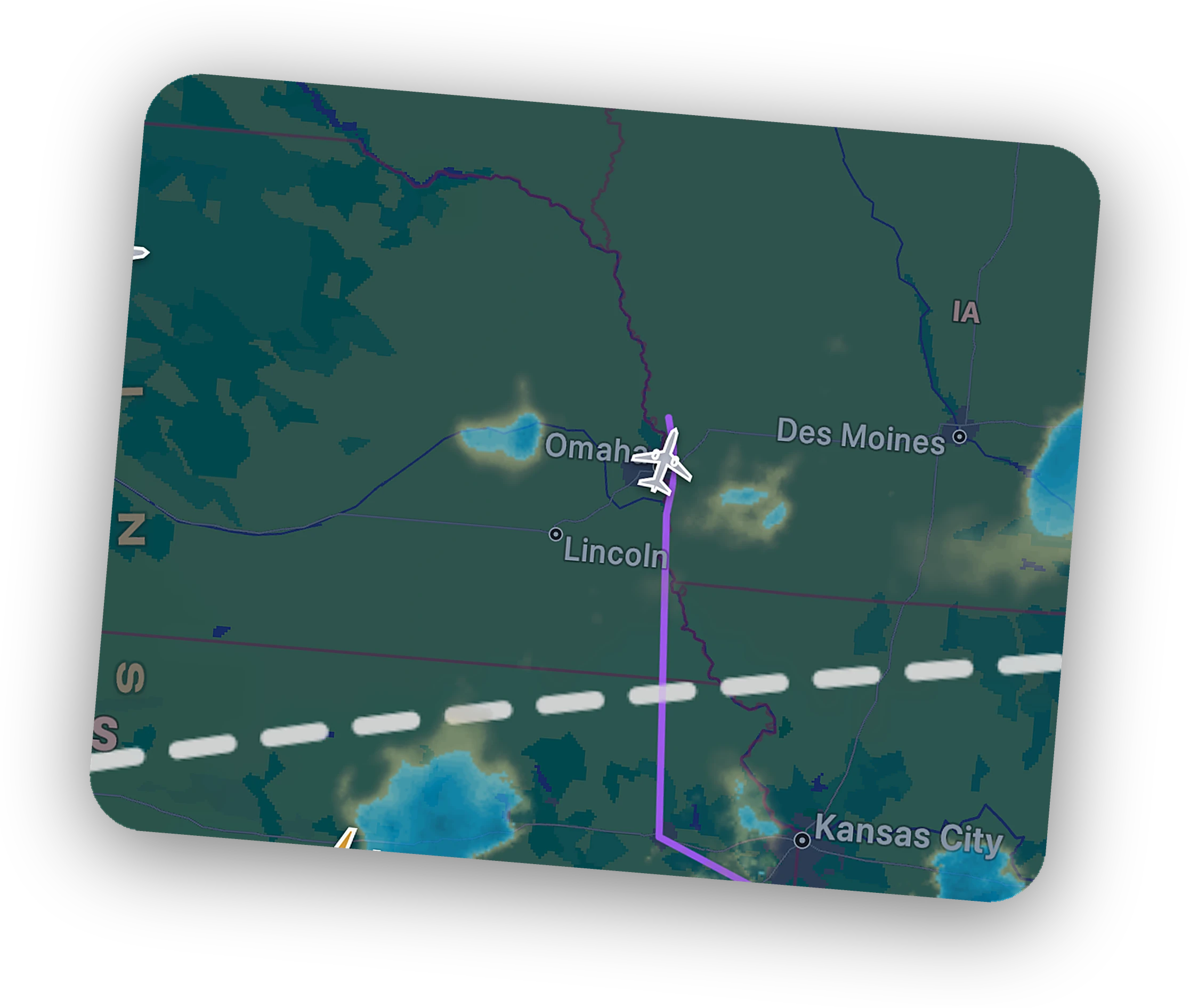
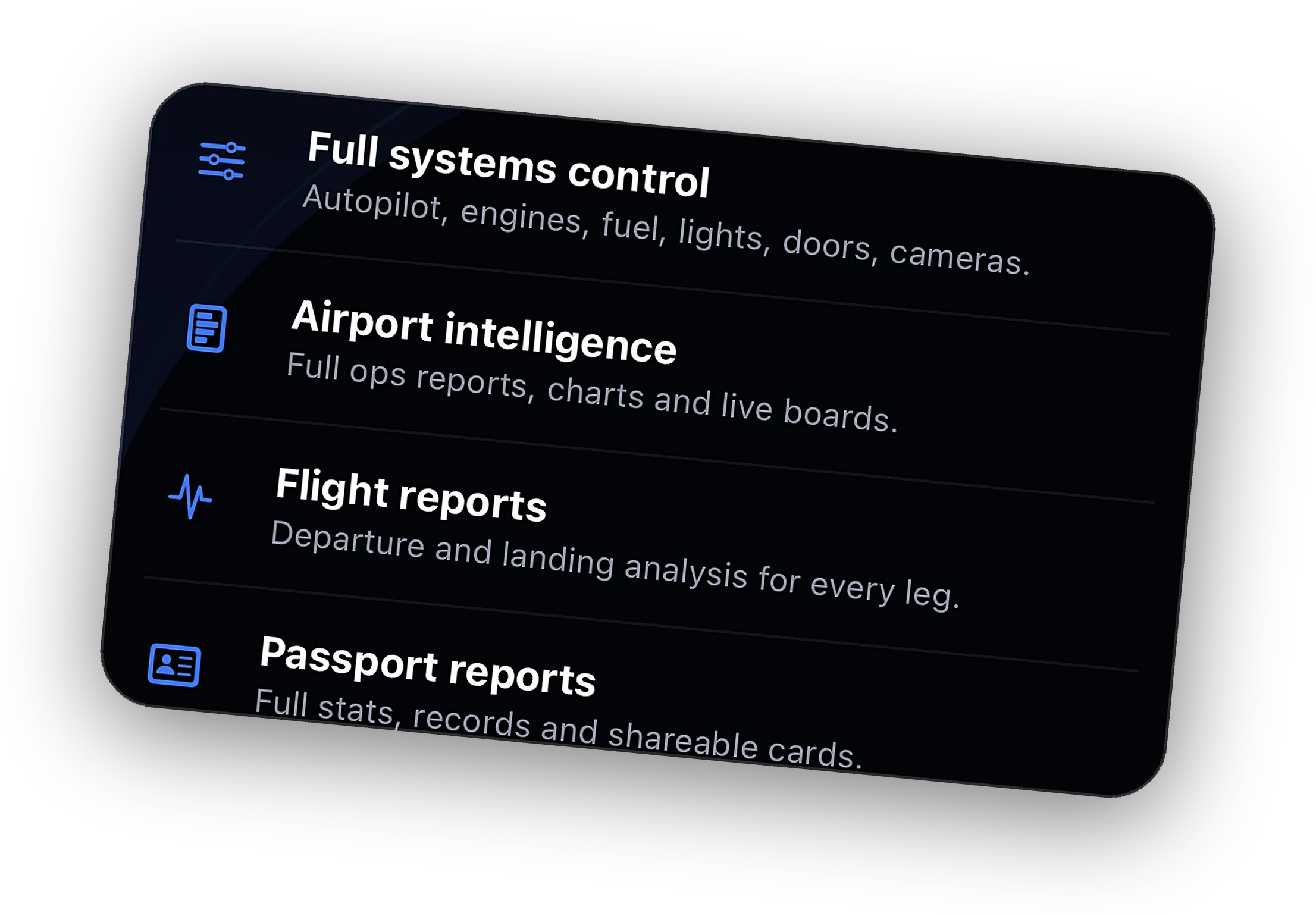
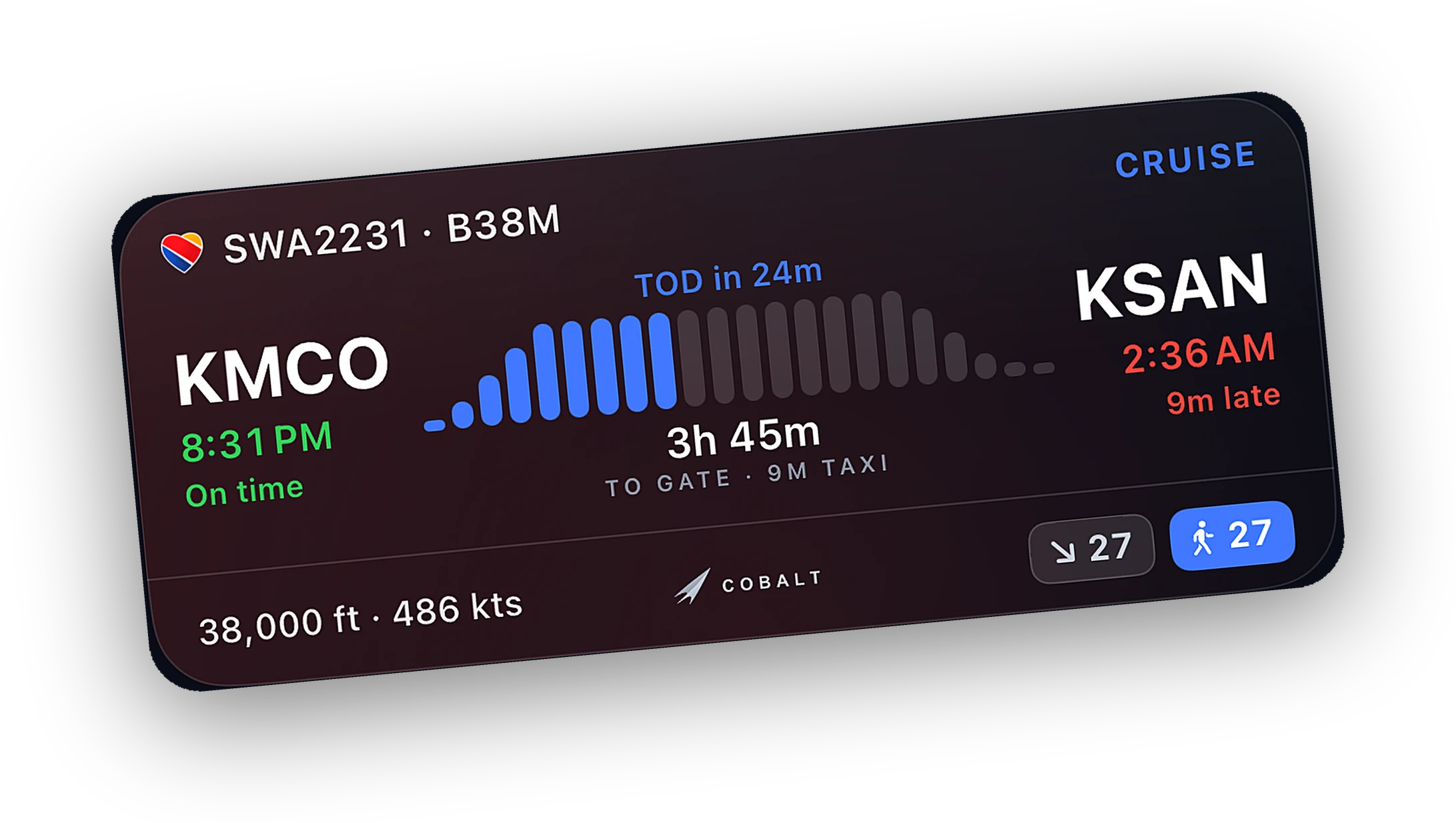
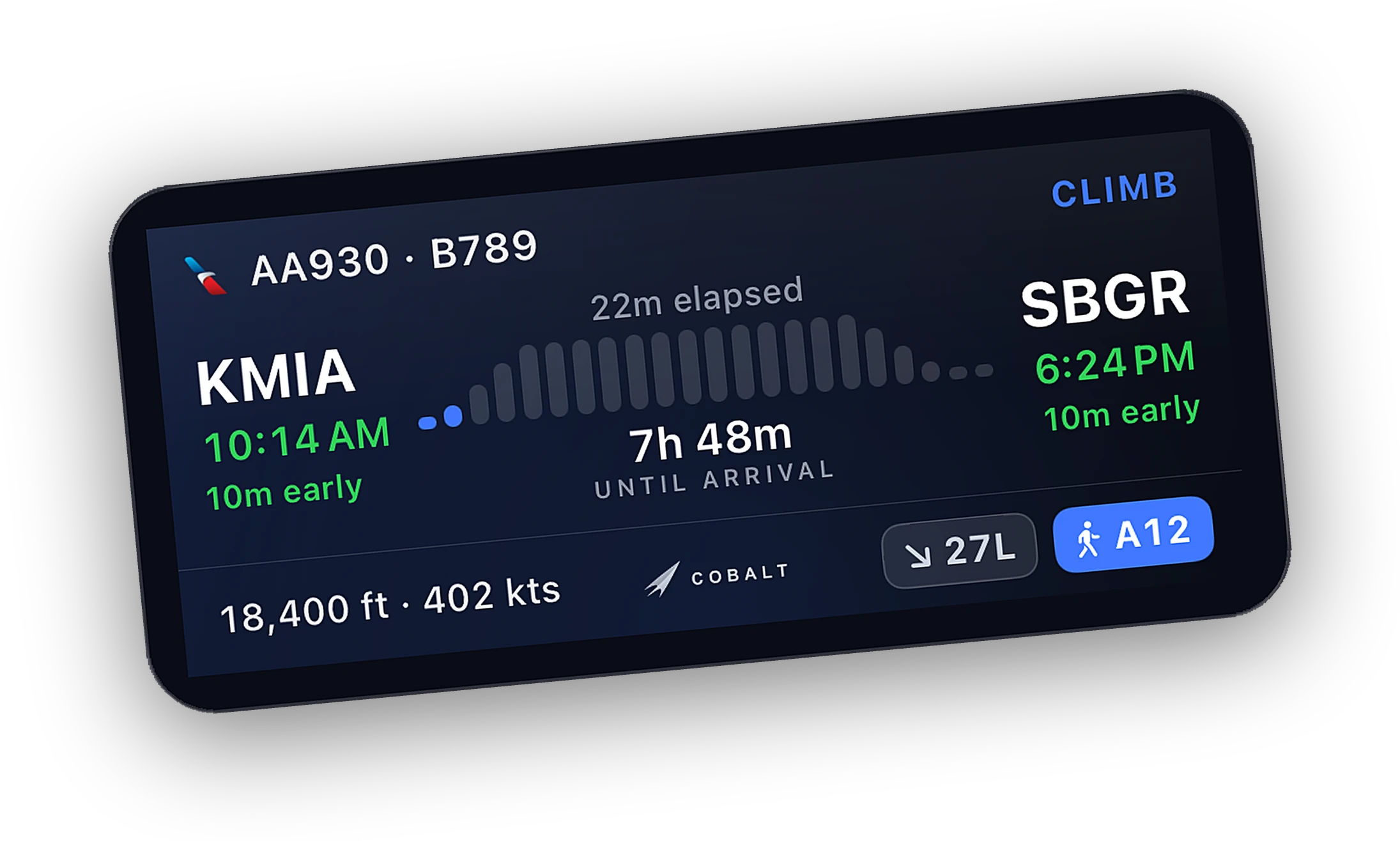
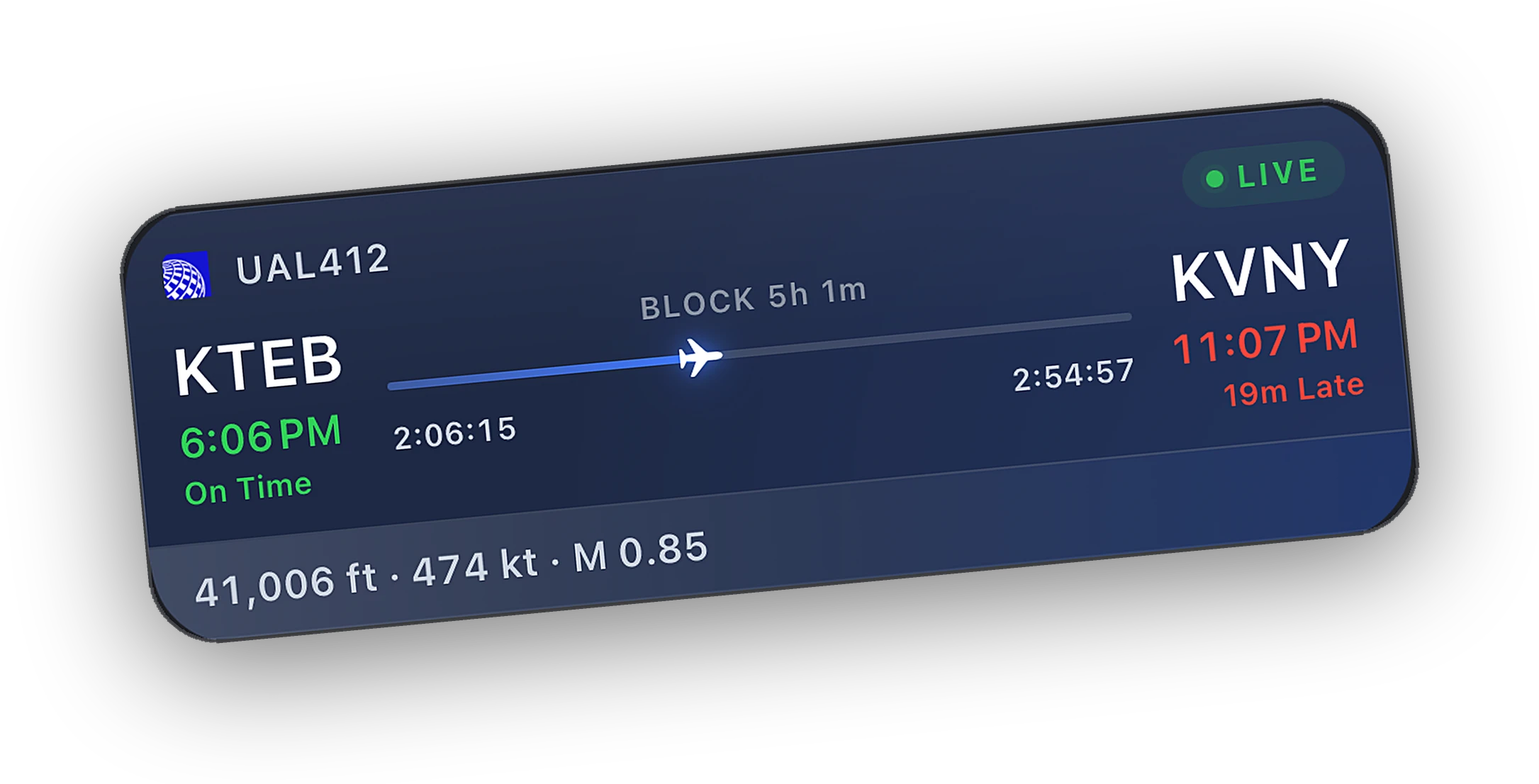
The short answerInstall the free Cobalt Bridge on the PC that runs Microsoft Flight Simulator 2020 or 2024, open Cobalt on your iPhone on the same Wi-Fi, and fly. When the wheels leave the runway, a Live Activity appears on the Lock Screen and in the Dynamic Island, and it follows the flight through climb, cruise, descent, and landing. Nothing in this guide needs Peak.
What you need
- An iPhone running iOS 18 or later. The Dynamic Island needs iPhone 14 Pro or newer. Every other iPhone gets the Lock Screen card.
- Microsoft Flight Simulator 2020 or 2024 on a Windows PC, from Steam or the Microsoft Store. Xbox is not supported.
- Cobalt Bridge, free, on that same PC. Windows 10 or later.
- The phone and the PC on the same home network.
How it works
MSFS does not talk to phones. It exposes a local interface called SimConnect that apps on the same PC can use. Cobalt Bridge is a small app that sits in the system tray on your sim PC, reads the aircraft through SimConnect, and serves that data to Cobalt over your local network. The iPhone app turns it into a Live Activity, Apple's name for the live card on the Lock Screen and in the Dynamic Island.
There are no aircraft mods, no Community folder add-ons, and no SimConnect.xml edits. The Bridge works with default and add-on aircraft because it reads the same simulation variables every aircraft reports.
Set it up in six steps
-
Install Cobalt Bridge on the sim PC
Download the Windows installer from the downloads page and run it on the PC that runs MSFS. The Bridge starts in the system tray. If an older copy is already running, quit it from the tray first, so two copies do not compete for the sim.
-
Allow it through Windows Firewall
The first time the Bridge starts, Windows asks whether to allow it on networks. Allow it on Private networks. That is what lets your iPhone reach it over Wi-Fi. If you dismissed the prompt, open Allow an app through Windows Firewall and tick Private next to Cobalt Bridge.
-
Install Cobalt and allow Local Network
Get Cobalt from the App Store and sign in. When iOS asks to find devices on your local network, tap Allow. Without that permission the app cannot see the Bridge, however good your Wi-Fi is.
-
Connect and activate this PC
Start MSFS and load a flight. On the same Wi-Fi, Cobalt finds the Bridge on its own. The first time, activate the PC with the code from Cobalt Settings, Cobalt Bridge. The setup guide shows exactly where it goes. You do this once per PC.
-
Take off
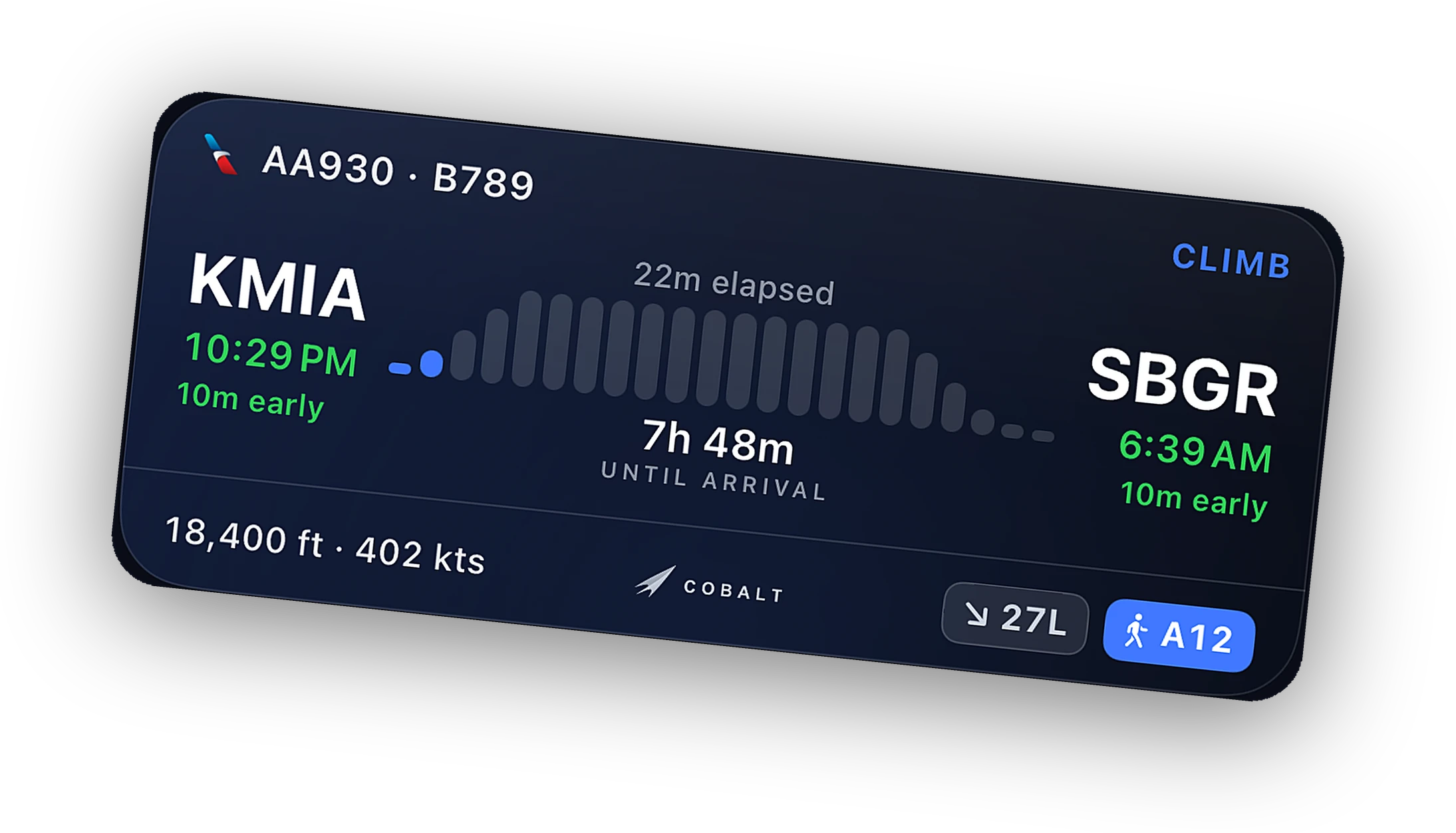
Fly as you normally would. When the wheels come up, the Live Activity starts on its own. Lock the phone and it is there, with the phase, a progress bar, altitude, and time to destination.
-
Add the widget and check alerts
Long-press the Home Screen to add the Cobalt Live Flight widget. Then open Cobalt Settings, Notifications and confirm phase changes are on, so top-of-descent alerts reach you.
What the Lock Screen shows
The card changes with the flight, so it shows what matters in each phase.
- Climb. Phase, altitude, and time to destination.
- Cruise. A progress bar, distance to go, time to top of descent, and an ETA that keeps moving.
- Descent. The arrival time up front.
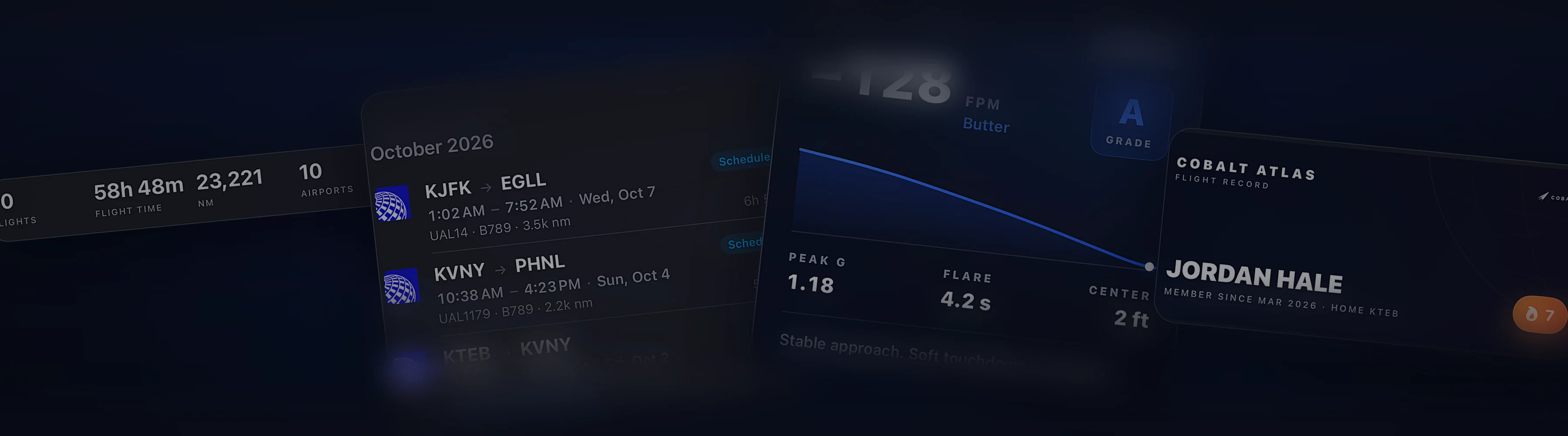
- Landed. Touchdown rate and block time, with a tap through to the flight report.
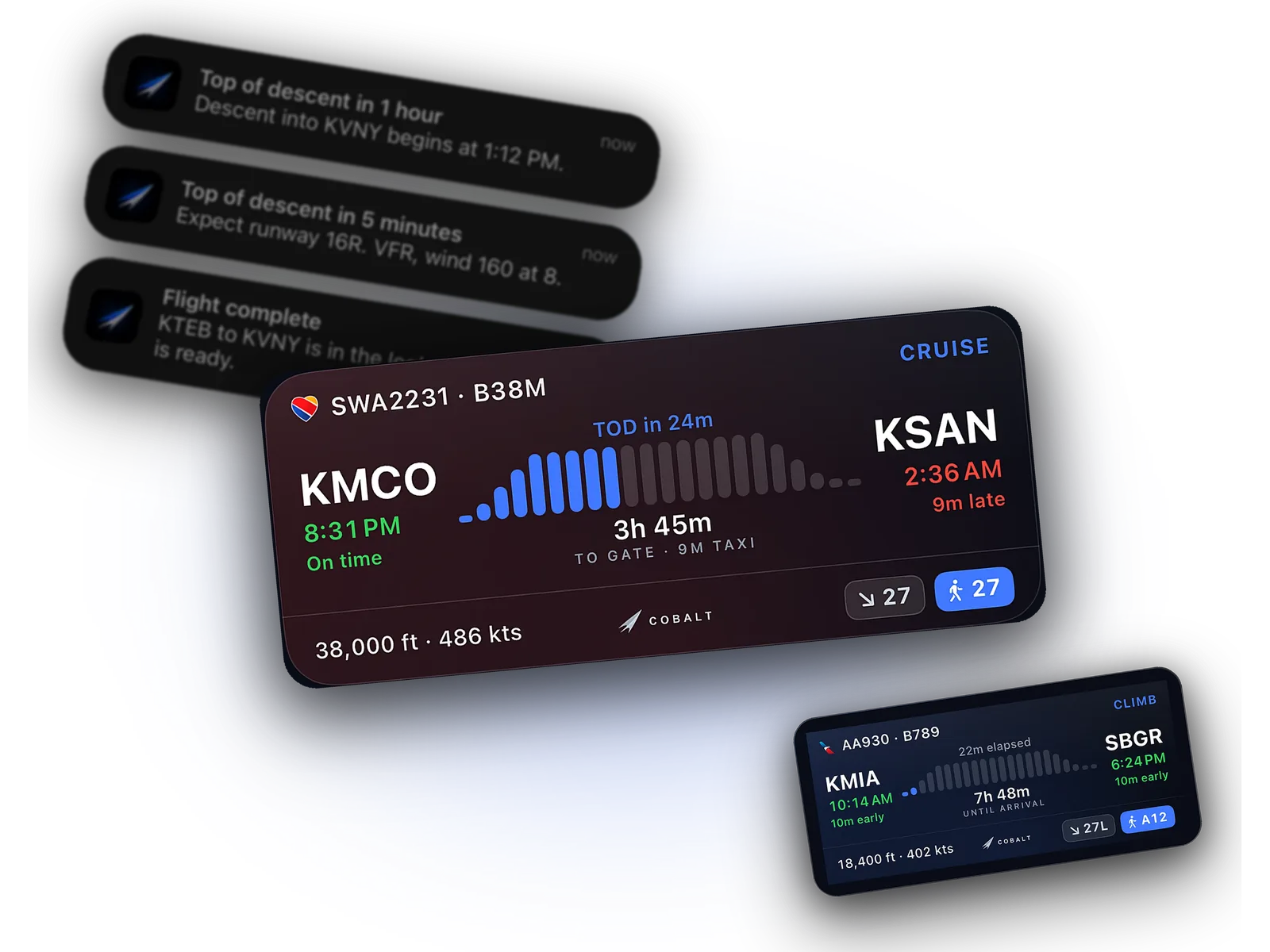
On iPhone 14 Pro and newer, the Dynamic Island shows a compact version while you use other apps. On Apple Watch, the Cobalt app shows phase, progress, ETE, altitude, and speed, synced from the phone.
Alerts that pair with it
The Live Activity is for glancing. Notifications are for getting you back to the desk. Cobalt sends a top-of-descent alert one hour out and another five minutes out, a notice when descent begins, and a welcome back once you are on the ground. It also tells you when something goes wrong: an engine failure, an autopilot disconnect, the sim pausing, or the sim crashing to the desktop.
Each category has its own switch in Cobalt Settings, Notifications. Under Settings, Alerts you can add your own, like a recurring fuel check every 45 minutes.
Top-of-descent alerts are scheduled on the phone at the estimated time, so they fire even when Cobalt is in the background. The estimate keeps updating as long as the Bridge is connected.
If the card does not appear
- Check Live Activities are allowed. In iPhone Settings, find Cobalt and confirm Live Activities is on.
- Wait for wheels up. The card starts at takeoff, not when you load at the gate. To start one earlier for a planned flight, open the flight's briefing card and tap Start Live Activity.
- Check the connection first. If Cobalt says it is not connected, the problem is the network, not the Live Activity. Same Wi-Fi, not a guest network, Bridge allowed on Private networks.
- Type the address by hand. Bridge Settings lists the PC's address under Connect your phone to. Enter it in Cobalt's Connection sheet to skip discovery.
Guest networks and some mesh routers keep devices from seeing each other. If discovery fails on a network you trust, look for a router setting called client isolation or AP isolation and turn it off for your home network.
Free or Peak?
Everything above is free on your home network. Peak adds Relay, so the Live Activity keeps updating when you leave the house and the phone is on cellular. It also adds an arrival forecast band in the ETA and a written debrief after landing. If long legs are your thing, read how to monitor a long-haul away from home.
Questions
Does the Lock Screen Live Activity need Peak?
No. The Live Activity, the Dynamic Island, widgets, the Apple Watch app, and phase alerts are free on your home network. Peak adds Relay for when you are away from home, plus the arrival forecast band.
Does it work with MSFS 2024?
Yes. One Bridge covers MSFS 2020 and MSFS 2024, from Steam or the Microsoft Store. It detects whichever version is running.
Will it work with add-on aircraft like PMDG or Fenix?
Yes. The Lock Screen card uses position, altitude, speed, and phase, which every aircraft reports. Some study-level aircraft limit remote controls, not tracking.
Does it keep updating if I close the app?
Yes. The Live Activity updates in the background while the Bridge is connected, and it resumes if you relaunch the app.
Does it work with X-Plane too?
Yes. X-Plane 11 and 12 on Windows or Mac use the same steps, with the Bridge reading the sim directly.