
Set up once. Fly in five minutes.
One small Bridge on the sim PC. The phone finds it on your Wi-Fi. Three more steps add two-way ATC messaging through vPilot or xPilot.
Free. Windows 10 or macOS 13 and later. MSFS 2020 and 2024, X-Plane 11 and 12.
Windows for MSFS and X-Plane. Mac for X-Plane.
Three are the same for everyone.
Pick your pilot client. Steps 1 to 3 never change. Steps 4 to 6 add ATC messaging for vPilot or xPilot.
-
Install Cobalt Bridge
Download the installer from the downloads page and run it on the sim PC. Windows for MSFS and X-Plane, Mac for X-Plane. Quit any old tray copy before launching the new one.
Cobalt BridgeSimulatorMicrosoft Flight Simulator 2024ConnectedPhoneiPhone on Wi-FiConnectedPeak RelayFrom anywhereReady -
Activate this PC
In Bridge, choose Activate this PC and paste the code from Cobalt Settings, Cobalt Bridge (Peak).
Activate this PCCode from Cobalt SettingsActivate -
Connect the phone
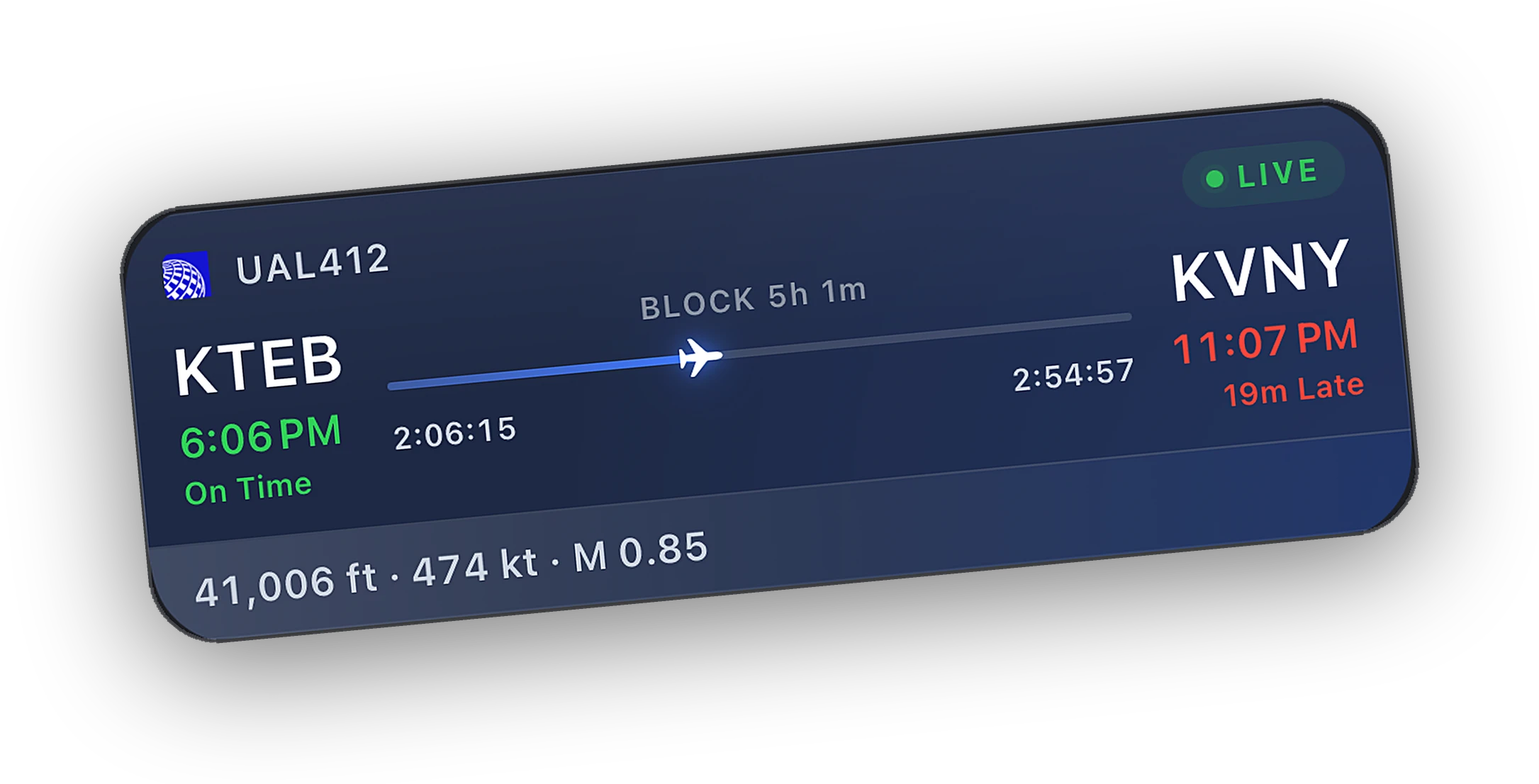
Open Cobalt and connect to Bridge on the same Wi-Fi, or over Peak Relay. Telemetry and systems work with Bridge alone. ATC messaging needs the client steps below.
ATC messaging through vPilot.
A small plugin inside vPilot carries messages between the network and your phone. Install it once from Bridge.
-
Install the vPilot plugin
On Bridge Settings tap Install vPilot plugin. It copies
CobaltVPilot.dllinto%LOCALAPPDATA%\vPilot\Plugins\.Bridge SettingsvPilot pluginCobaltVPilot.dllNot installed%LOCALAPPDATA%\vPilot\Plugins\CobaltVPilot.dllInstall vPilot plugin -
Restart vPilot
Fully quit vPilot, reopen it, then confirm Cobalt Companion under Settings, Plugins. Update vPilot if Bridge warns about .NET Framework 4.8.
vPilot · Settings · PluginsCobalt CompanionCobaltVPilot.dllLoaded.NET Framework4.8 or newerOK -
Message ATC from your phone
Inbox, Message ATC sends like vPilot
.msg. Replies land on your phone with notifications.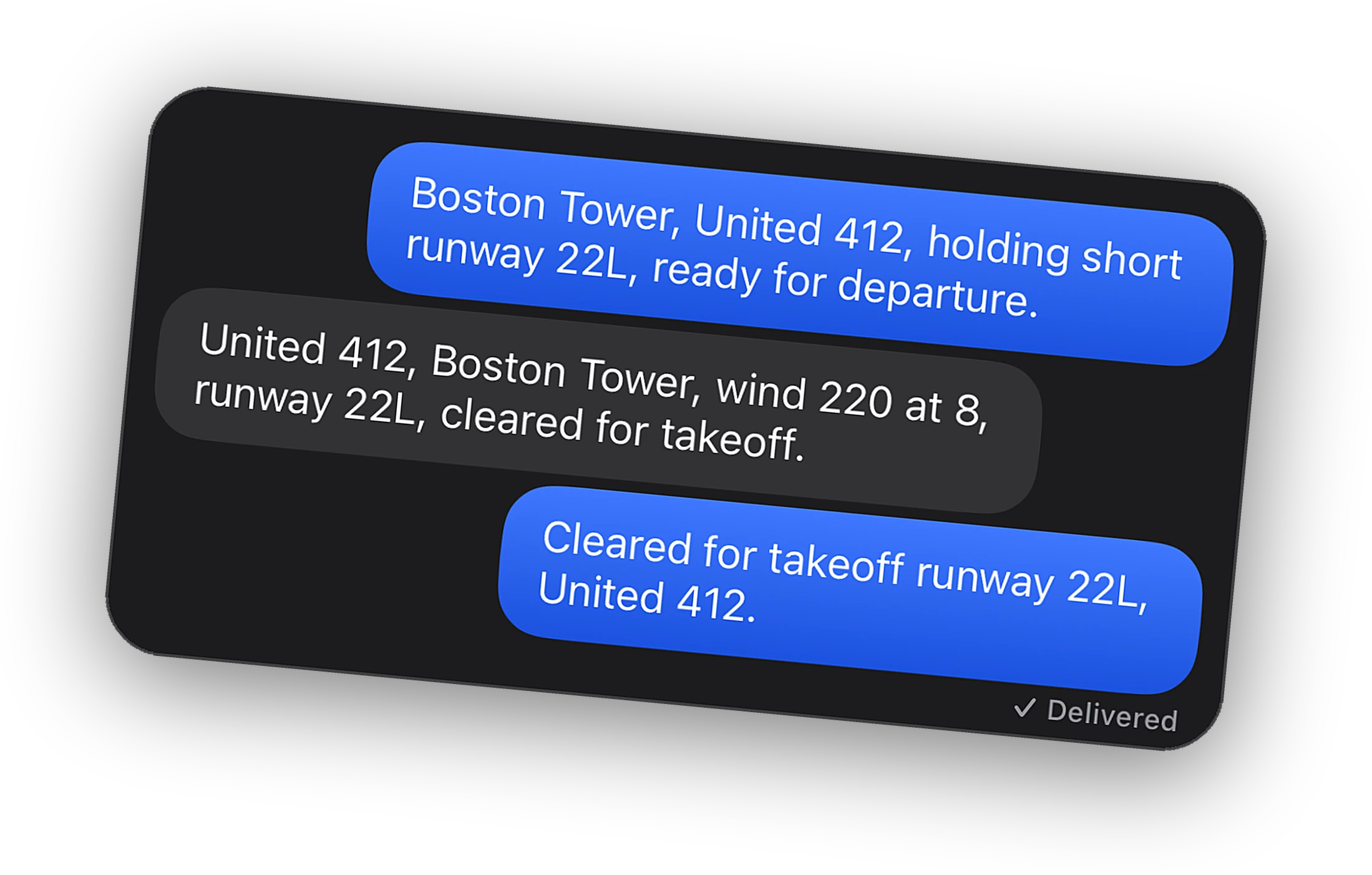
ATC messaging through xPilot.
xPilot has no third-party plugin API, so Bridge provides an opt-in relay. It sits between the xPilot desktop client and xPilot's X-Plane plugin. Full two-way ATC messaging, same as vPilot.
-
Turn on xPilot messaging in Bridge
On Bridge Settings, enable xPilot messaging. Bridge listens on your LAN for xPilot.
Bridge SettingsxPilot messagingRelay between xPilot and X-PlaneListeningOn your LANReady -
Point xPilot at Cobalt
Quit xPilot first. In Bridge tap Point xPilot at Cobalt. It updates xPilot's network address and ports. Then restart xPilot.
Point xPilot at CobaltxPilot network address192.168.1.24 LAN IP, never 127.0.0.1Point xPilot at Cobalt -
Confirm the chain
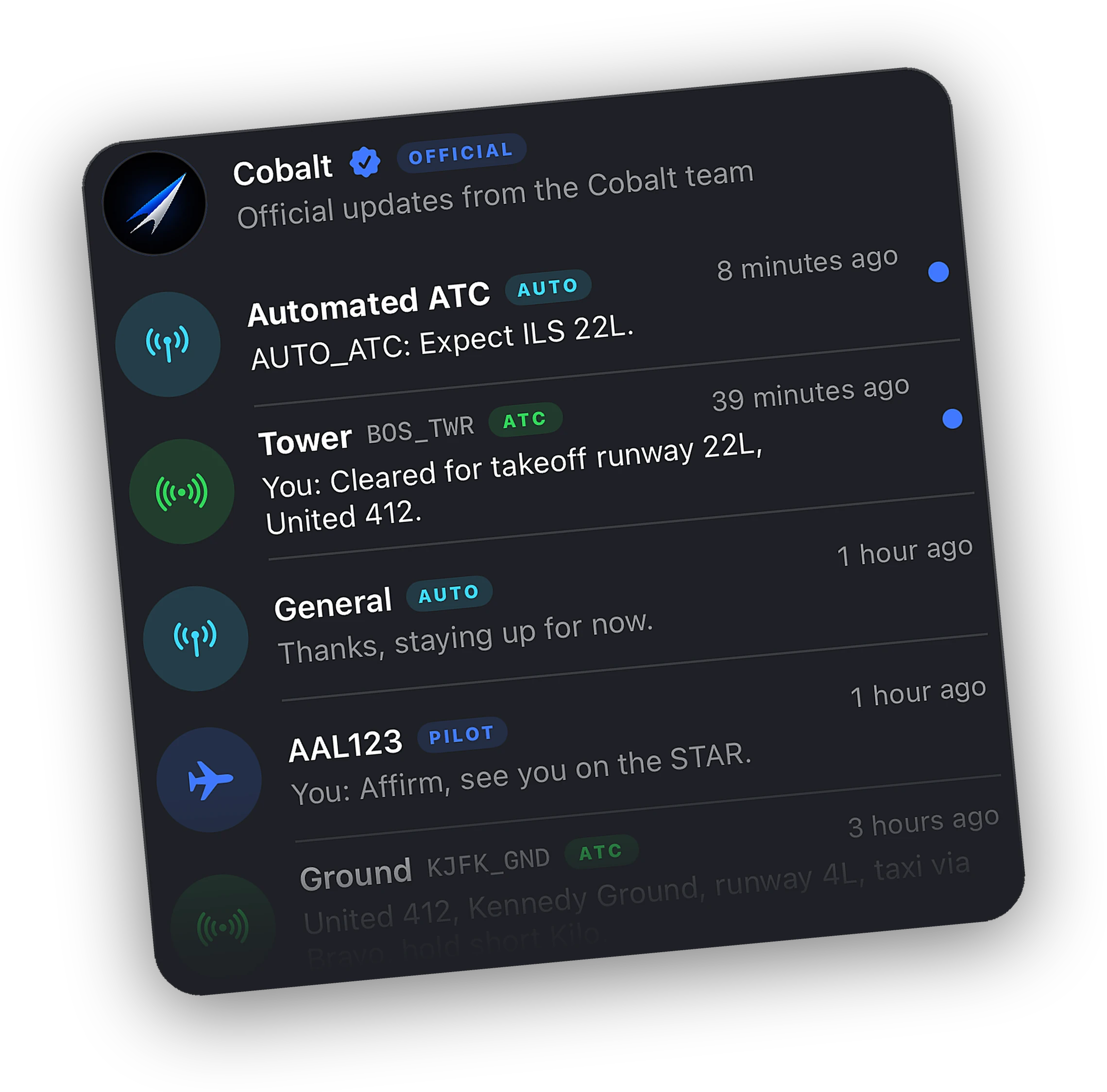
Bridge should show xPilot connected, X-Plane plugin connected, and VATSIM online when you are on the network. Then Inbox on your phone works the same as MSFS.
127.0.0.1. Details live on Bridge Settings, in the xPilot card.Will it work with your setup?
Pick your sim, PC, phone, and network. The list shows what works and what to install.
The Bridge runs on the PC with the sim. Not affiliated with Microsoft, Laminar Research, VATSIM, or IVAO. See Cobalt Bridge for details.
- Works: Microsoft Flight Simulator 2024Works with Cobalt Bridge through SimConnect. Live telemetry, systems, and the logbook.
- Works: Install Cobalt Bridge for WindowsFree, for Windows 10 and later. Get it from downloads, then follow the five-minute steps above.
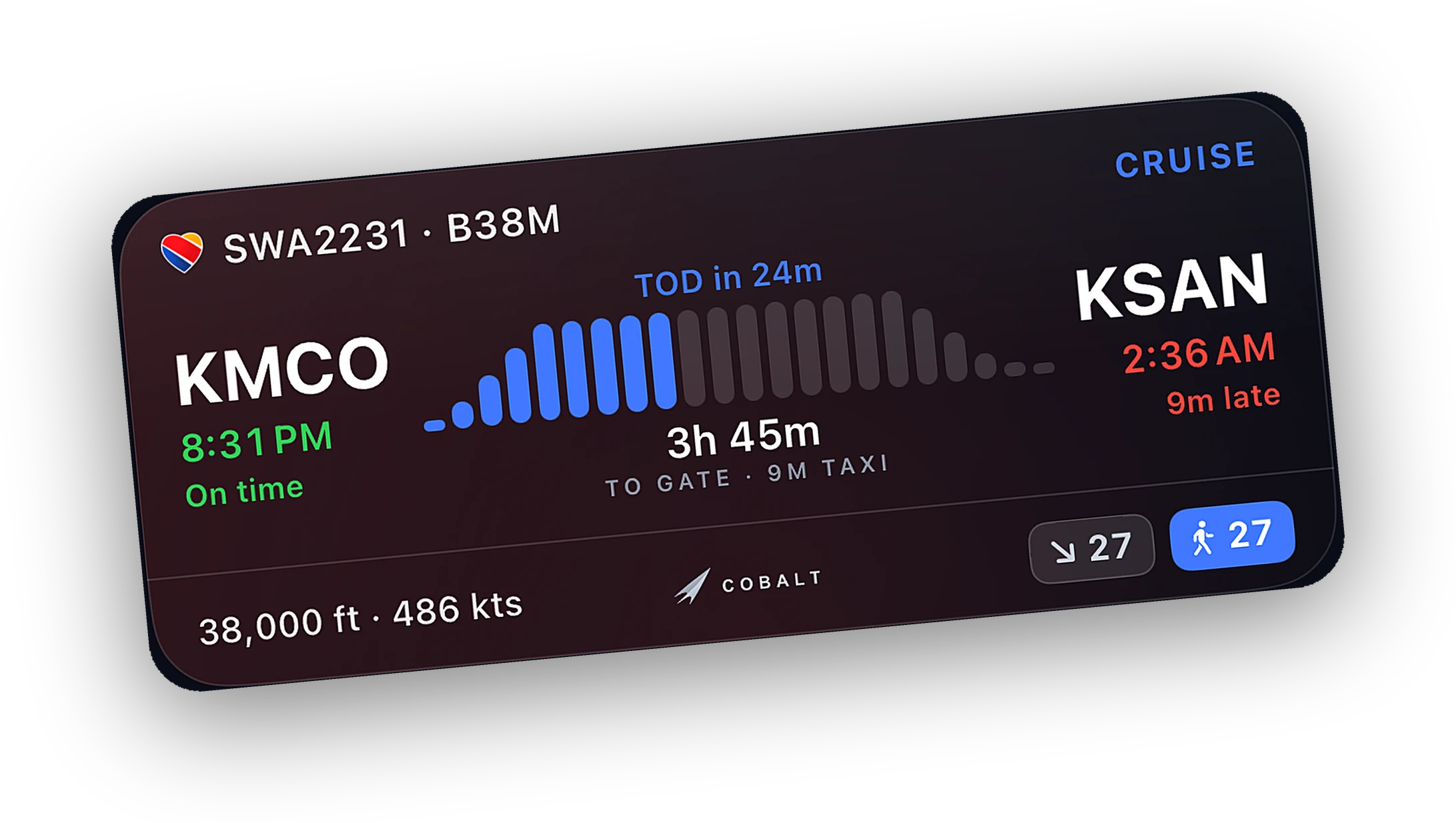
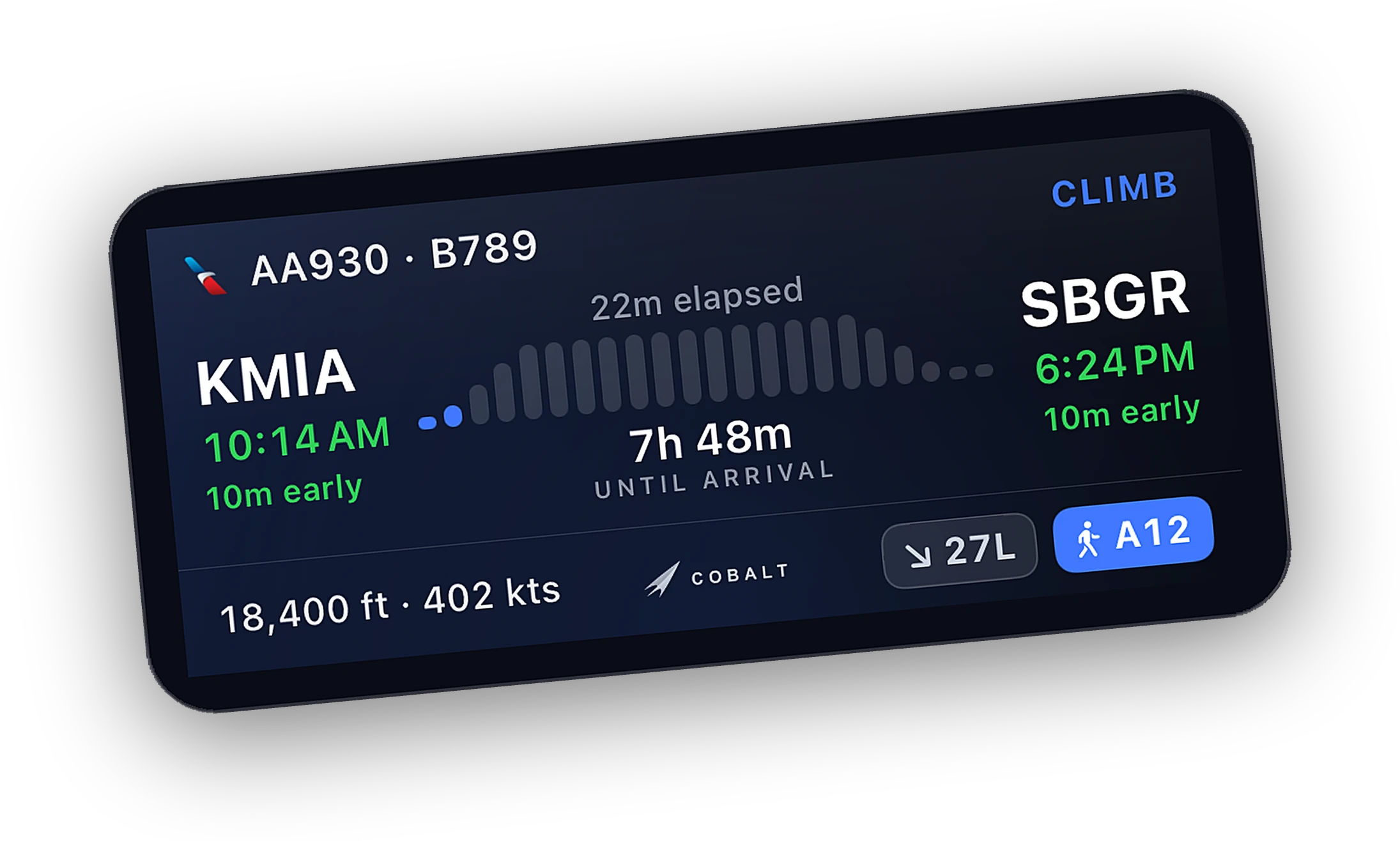
- Works: Cobalt for iPhoneArrives on the App Store soon. Get notified. Live map, readouts, and your flight on the Lock Screen and in the Dynamic Island.
- Works: VATSIM through vPilotTraffic and controllers on the live map. For two-way ATC messaging with Peak, install the vPilot plugin from Bridge Settings. vPilot steps.
- Good to know: Same Wi-Fi, or RelayThe phone finds the Bridge on your home network. With Peak, Relay connects from anywhere, including cellular.
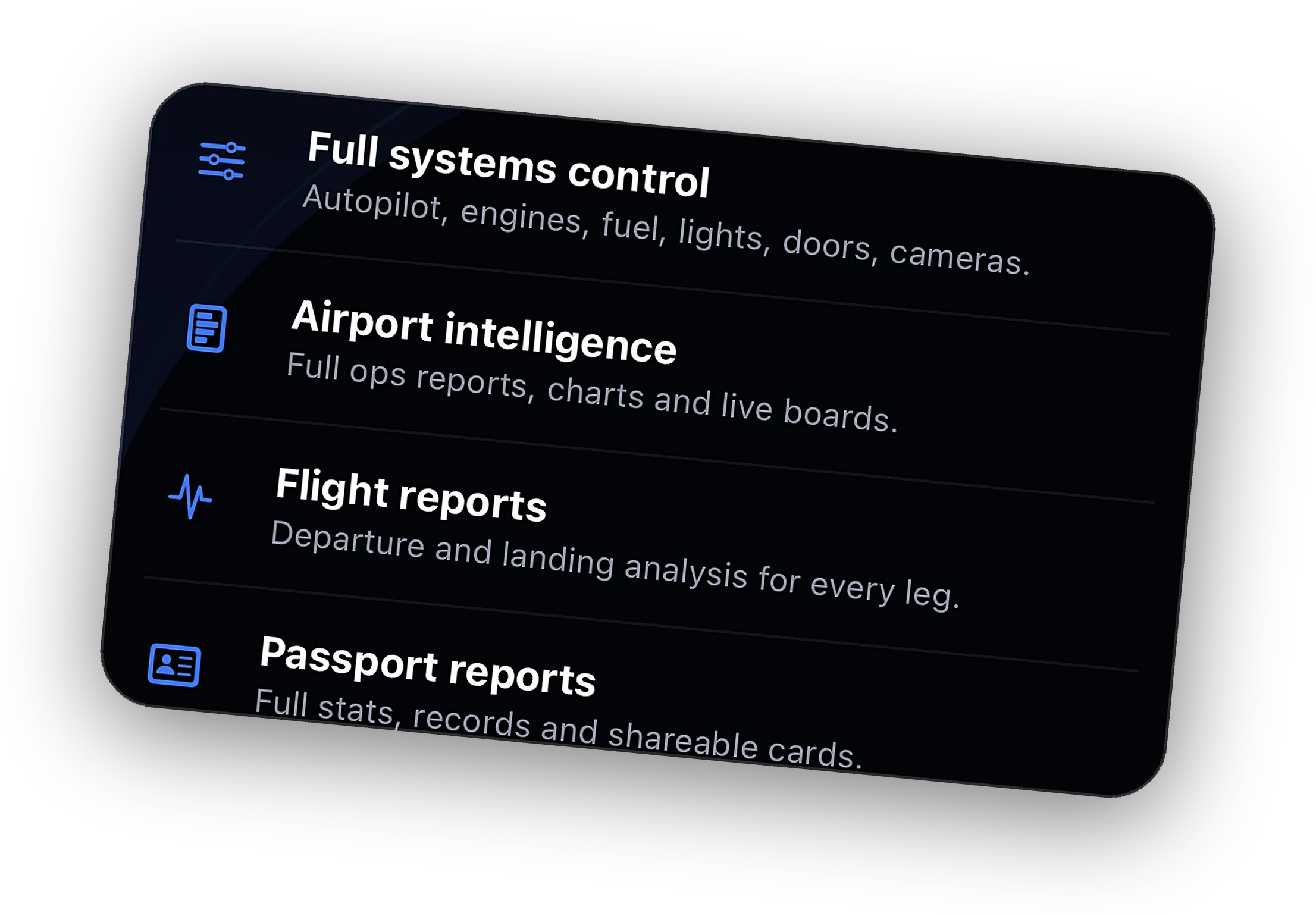
- Good to know: Free to flyLive map, tracking, and readouts are free. Peak adds remote systems control, ATC messaging, Relay, and the Bridge on up to 3 PCs.
If something does not connect.
Four answers that cover most setup questions. Everything else goes to support.
Windows asked about the firewall. What do I allow?
Allow Cobalt Bridge on private networks when Windows asks. The phone finds the Bridge over your Wi-Fi, and that needs the local network open. If you dismissed the prompt, add Cobalt Bridge under Allow an app through Windows Firewall and tick Private.
The phone cannot find the Bridge on Wi-Fi.
Check that the phone and the PC are on the same network, not a guest network. Some routers keep devices from seeing each other (client or AP isolation). Turn that off, or connect over Peak Relay, which does not depend on Wi-Fi.
An old copy of Bridge is still running in the tray.
Quit it from the tray icon before launching the new one. Two copies compete for the sim connection, and the phone may attach to the stale one. The installer replaces the files, but it does not close a copy that is already running.
vPilot does not list the plugin.
Confirm CobaltVPilot.dll is in %LOCALAPPDATA%\vPilot\Plugins\, then fully quit and reopen vPilot. If Bridge warns about .NET Framework 4.8, update vPilot. On a host and remote setup, the plugin belongs on the host instance, the one connected to the sim and VATSIM.
Both big sims, both networks, and the devices already in your pocket.
- MSFS 2020
- MSFS 2024
- X-Plane 11
- X-Plane 12
- VATSIM
- IVAO
- SimBrief
- vPilot and xPilot
- iPhone and iPad
- Apple Watch
Ready for the first flight.
The Bridge is free on Windows and Mac. The app lands on the App Store soon. Join the list for a launch code.