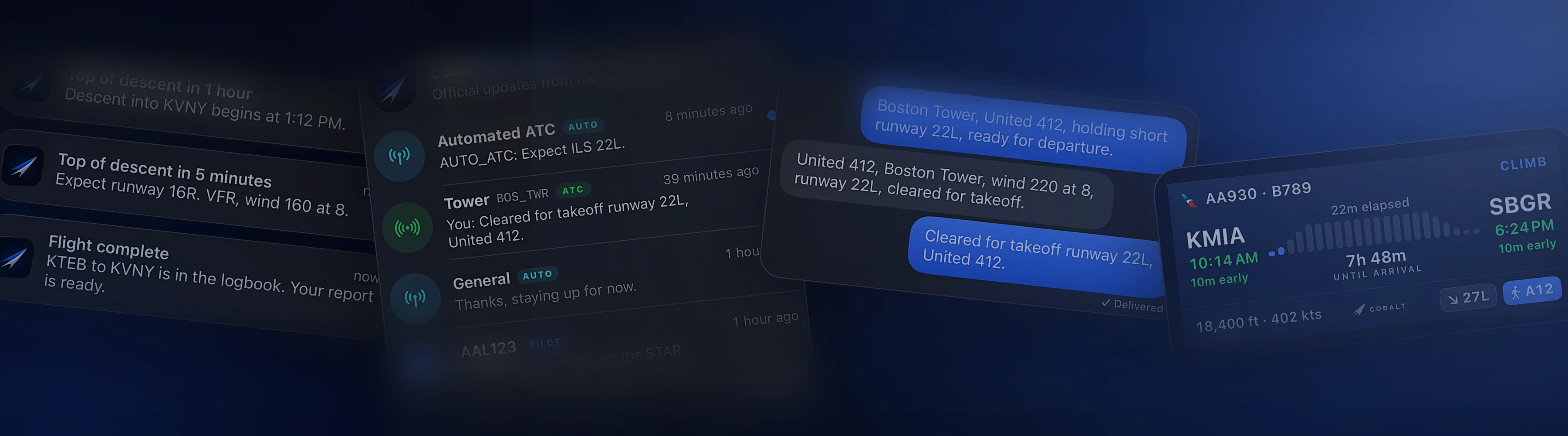
The short answerInstall the free Cobalt Bridge on the sim PC, then add the small Cobalt plugin to vPilot on MSFS, or turn on the xPilot relay in the Bridge on X-Plane. Messages you write in Cobalt leave through your pilot client as an ordinary VATSIM private message from your callsign, and replies come back to the phone with a notification. Sending is part of Peak. Reading messages and controller-online alerts are free.
What you need
- Cobalt on iPhone or iPad. Sending messages needs Peak.
- Cobalt Bridge on the sim PC, activated and connected to the app. The setup guide covers this.
- vPilot with MSFS 2020 or 2024, or xPilot with X-Plane 11 or 12.
- A VATSIM account and a working pilot client. Cobalt does not connect to the network for you.
- For vPilot: .NET Framework 4.8 or newer on the PC. The Bridge warns you if it is missing.
How it works
Only your pilot client is allowed to talk to VATSIM. Cobalt never logs on as you and never opens a second connection. Instead, Cobalt Bridge passes messages to and from the pilot client already running on your PC.
- Cobalt on the phone
- Cobalt Bridge
- vPilot or xPilot
- VATSIM
- The controller
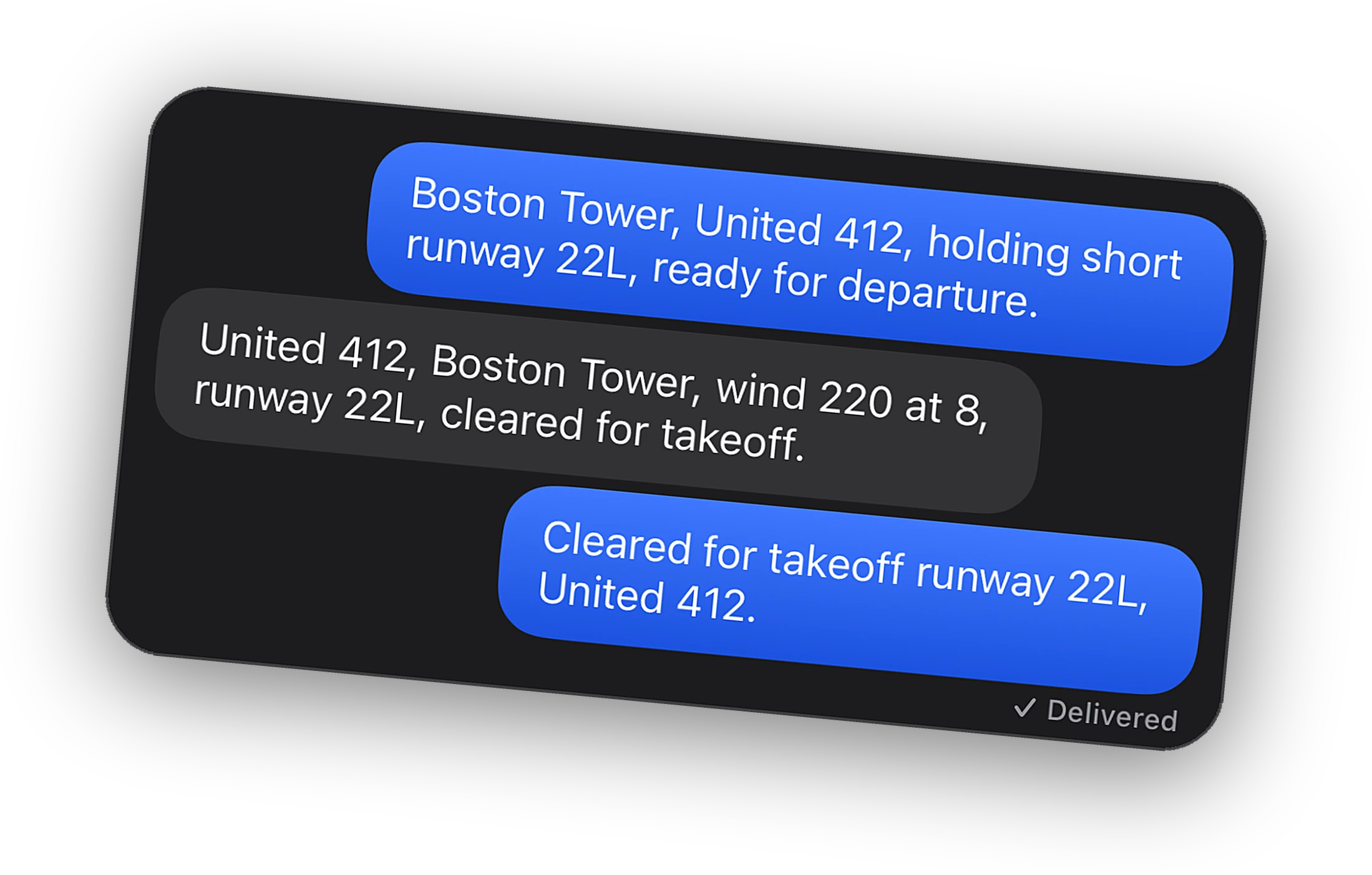
You type in Cobalt. The phone sends the message to the Bridge over your Wi-Fi, or over Relay with Peak. The Bridge hands it to the pilot client, and the pilot client sends it. The controller sees an ordinary private message from your callsign, the same as typing .msg in vPilot, with nothing about Cobalt in it.
On MSFS, a small plugin inside vPilot, CobaltVPilot.dll, does the handoff through vPilot's published plugin interface. xPilot has no plugin interface, so on X-Plane the Bridge offers an opt-in relay. It sits between the xPilot app and xPilot's own X-Plane plugin and passes their traffic through untouched.
Set it up with vPilot on MSFS
-
Connect Cobalt to the Bridge
If the phone already shows your flight, this step is done. If not, follow the setup guide first.
-
Quit vPilot and install the plugin
Fully quit vPilot. In Cobalt Bridge, open Settings and choose Install vPilot plugin on the ATC messages card. It copies
CobaltVPilot.dllinto%LOCALAPPDATA%\vPilot\Plugins\. -
Restart vPilot and confirm
Open vPilot and look under Settings, Plugins for Cobalt. After this, start order does not matter. The plugin reconnects to the Bridge on its own within a few seconds.
-
Send your first message
Connect to VATSIM as usual. In Cobalt, open an airport's live ATC list or a controller's sheet, tap Message ATC, and write. The thread shows Delivered once vPilot has taken the message.
Running vPilot in host and remote mode? Install the plugin on the host instance, the one connected to the sim and the network. The remote instance does not load plugins.
Set it up with xPilot on X-Plane
-
Turn on X-Plane messaging
In Cobalt Bridge, open Settings, find the X-Plane messaging card, and choose Turn on. It is off by default.
-
Point xPilot at Cobalt
Quit xPilot completely first, because it rewrites its settings when it exits. Then choose Point xPilot at Cobalt. The Bridge saves your original xPilot settings and switches xPilot to the relay: the PC's LAN address, plugin port 53200, and UDP port 49010.
-
Restart and check the chain
Restart X-Plane and xPilot. The Bridge card should show xPilot connected to Cobalt, Cobalt connected to X-Plane, and the VATSIM network once you log on. From there, messaging works the same as on MSFS.
While xPilot points at Cobalt, the Bridge must be running for xPilot to see X-Plane at all. To go back to a direct connection, quit xPilot and choose Restore xPilot settings. If you enter the values by hand, the address must be the PC's LAN IP, never 127.0.0.1.
What it does and does not do
Cobalt handles text private messages. That covers what happens in a private chat window: asking for a different runway, checking a clearance you missed, answering when a controller reaches out first.
- Private messages only. Text sent on frequency, ATIS, and CPDLC do not reach the app.
- Text only. No voice and no attachments. Voice stays in your pilot client.
- Delivered means handed over. It means your pilot client took the message. VATSIM has no read receipt.
- No replay. A message that arrives while the phone has no link to the Bridge and notifications are off is not replayed later. It stays in your pilot client.
- IVAO. The Altitude client has no public plugin interface. Cobalt can copy a ready-to-paste
.msgline to the PC clipboard, but replies do not come back to the phone.
Replies and notifications
When a controller writes to you, including first contact from a station you have never messaged, the message lands in Cobalt Inbox with an unread badge and a notification. It arrives whether Cobalt is open, in the background, or closed, as long as notifications are allowed. Mute a thread to keep it quiet.
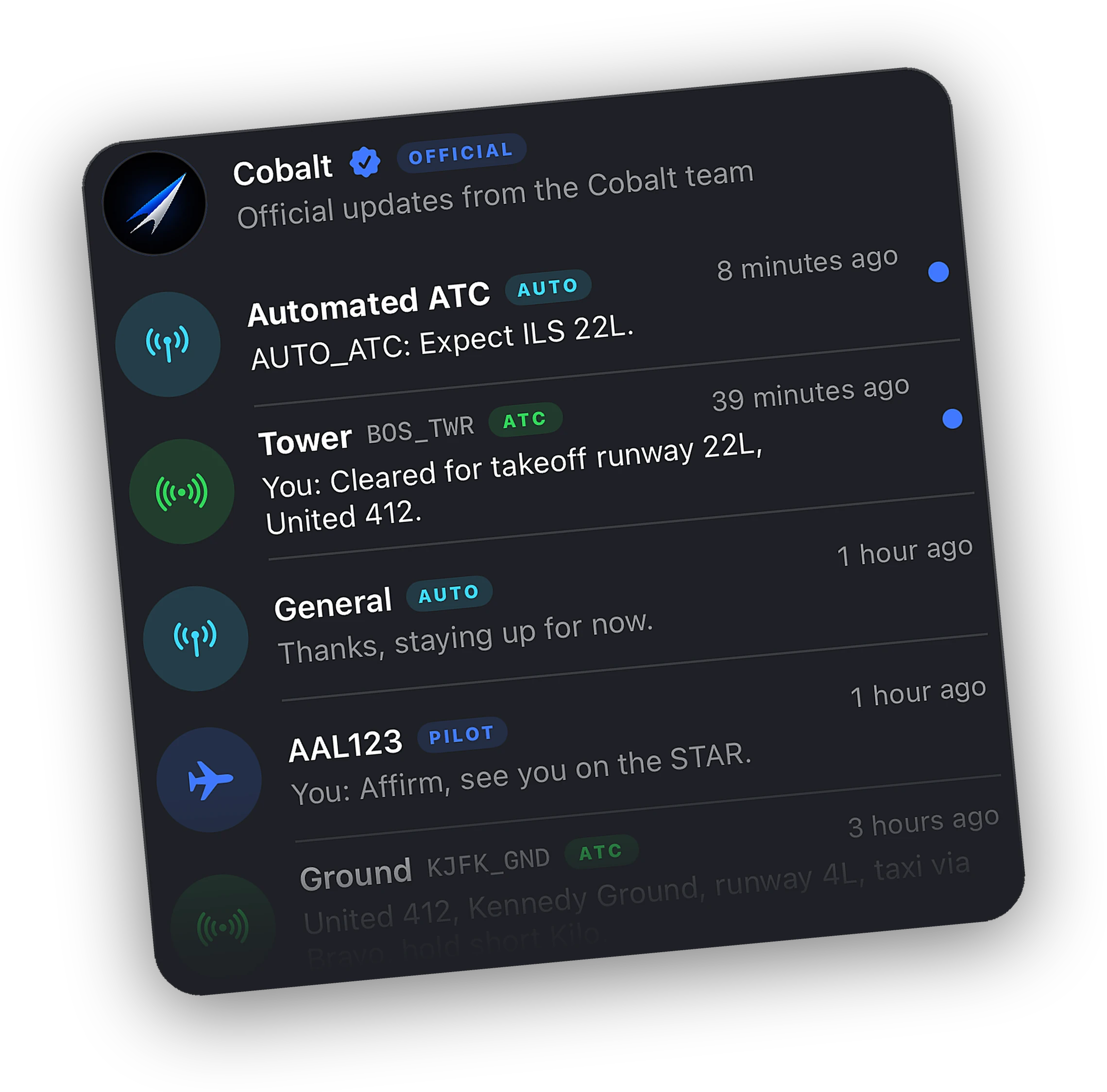
Controller-online alerts are free and separate. Cobalt tells you when a station opens at your departure, your destination, or along the route, so you know when it is time to get back in the seat. More on the ATC alerts and messaging page.
Good manners on the network
Messaging from the phone is a convenience, not a way to fly unattended. VATSIM expects you to be able to respond to ATC while connected. For a short break, the out-of-cockpit auto-reply in Cobalt Settings, Alerts answers incoming ATC messages for you. It is capped at 30 minutes to stay within VATSIM's rules on unattended connections. Check the current VATSIM Code of Conduct for the details.
If you plan to handle ATC by text, set your flight plan's voice capability to text only (/T/ in the remarks), so controllers know to send you text.
If a message does not go through
- Not delivered, with a clipboard note. The Bridge could not reach the plugin or relay, so it copied a
.msgline to the PC clipboard instead. Restart vPilot, and check nothing else on the PC uses port 52180. - vPilot does not list the plugin. Confirm the file is in
%LOCALAPPDATA%\vPilot\Plugins\, then fully quit and reopen vPilot. - Not connected to the network. If your pilot client is open but offline, the Bridge refuses the message instead of guessing. Connect to VATSIM first.
- xPilot cannot see X-Plane. Make sure the Bridge is running, then restart X-Plane after pointing xPilot at Cobalt.
Questions
Does the controller know I am using Cobalt?
No. They see a normal private message from your callsign, identical to one typed in your pilot client. Nothing about Cobalt is added to messages sent to controllers.
Do I still need vPilot or xPilot?
Yes. You fly with your usual pilot client. Cobalt adds a plugin for vPilot or a relay for xPilot so messages pass through your own session.
Is ATC messaging free?
Reading messages in Inbox and controller-online alerts are free. Sending private messages to controllers from the phone is part of Peak.
Does it work on IVAO?
IVAO traffic and controllers show on the map. Two-way messaging is VATSIM only, through vPilot and xPilot. IVAO's Altitude client has no plugin interface, so Cobalt can only copy a message to the PC clipboard.
Can I talk to ATC by voice from the phone?
No. Cobalt handles text private messages and alerts. Voice stays in your pilot client.